Appearance
Quick Start (EN)
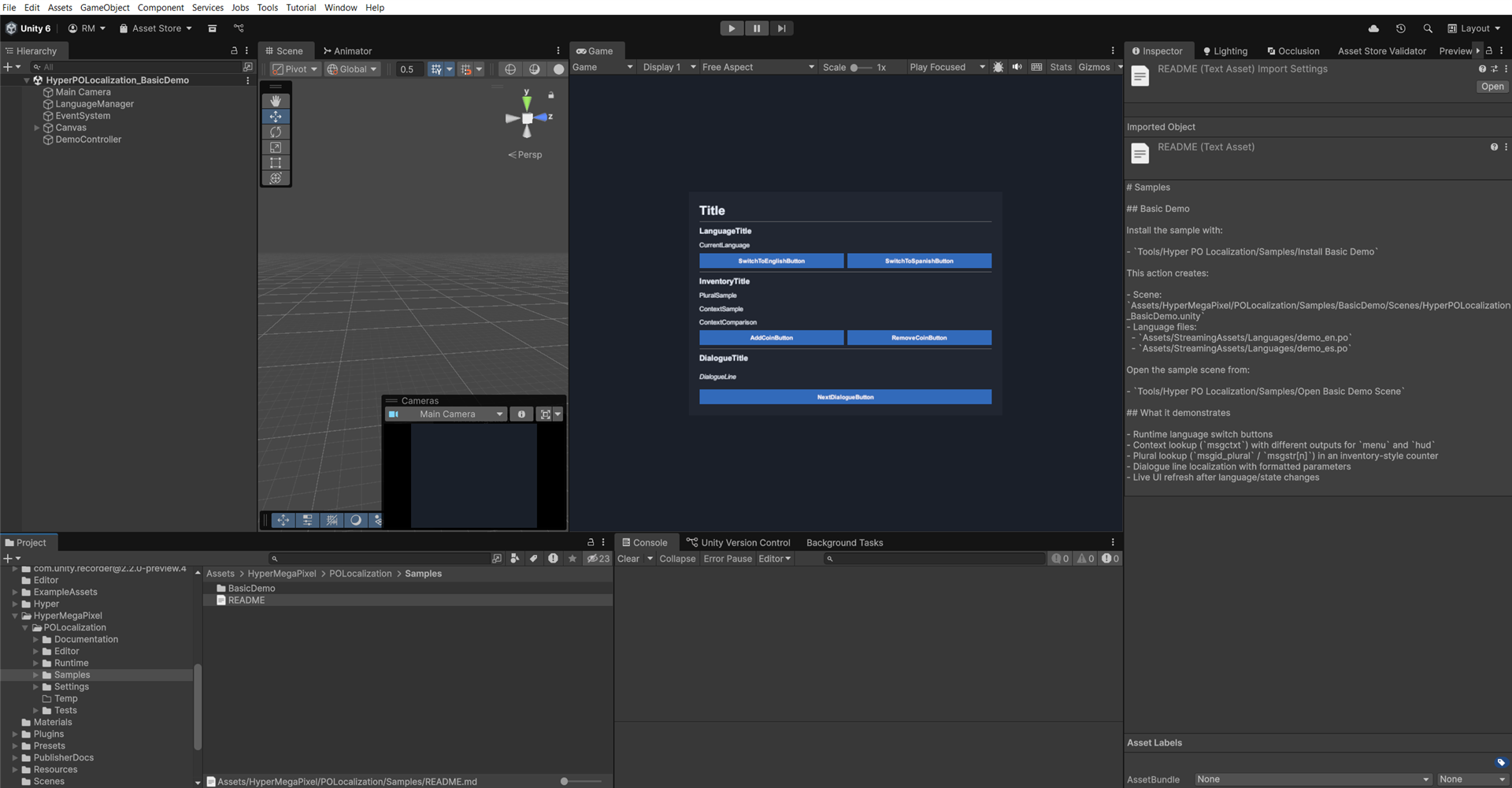
This is the fastest way to validate the asset in a clean project.
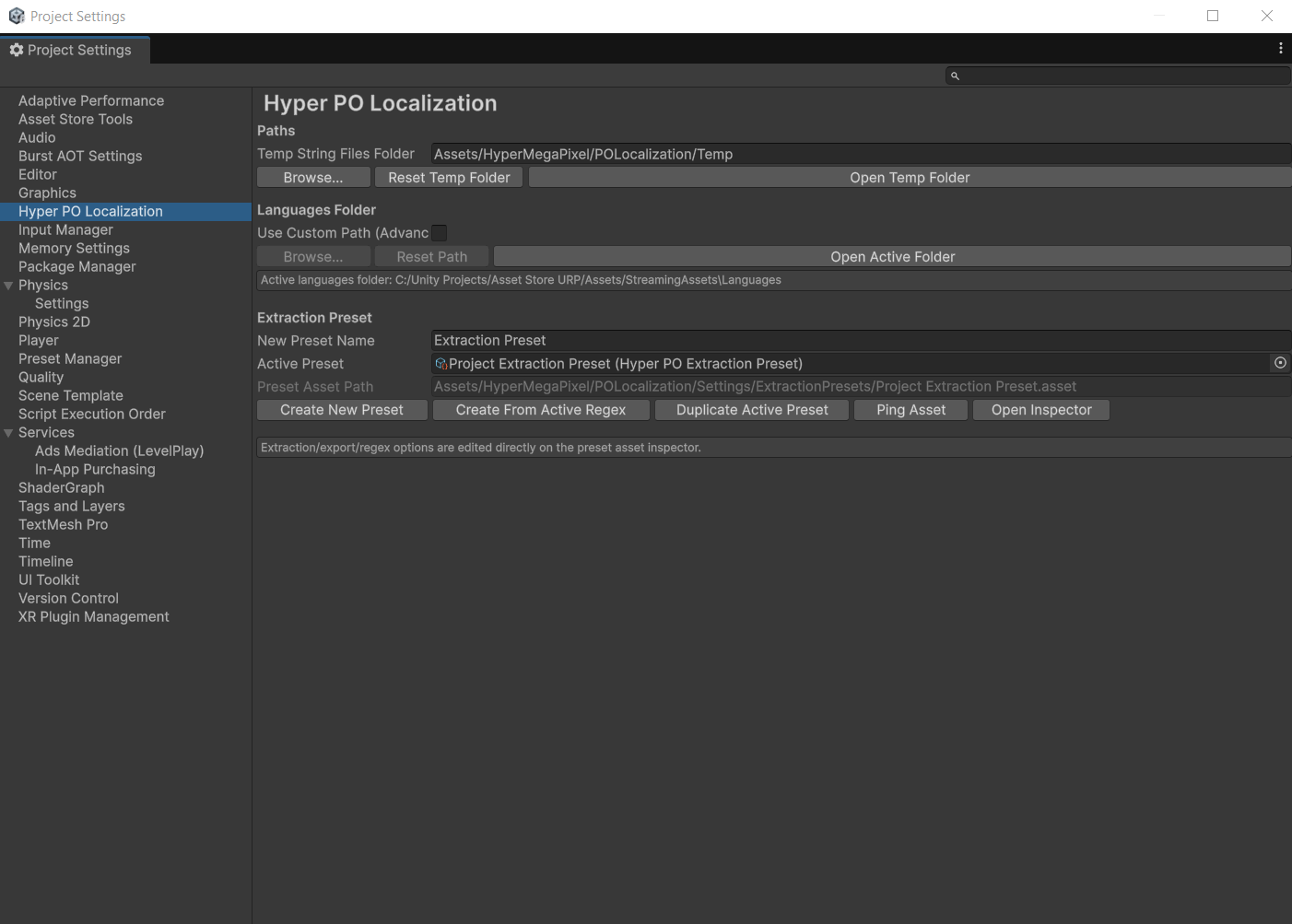
1) Configure
- Open
Project Settings > Hyper PO Localization. - Keep the default paths for initial setup.
2) Install Showcase Demo
- Run
Tools/Hyper PO Localization/Samples/Install Basic Demo. - Open
Tools/Hyper PO Localization/Samples/Open Basic Demo Scene. - Press Play.
You will see:
- Runtime language switching
- Context example (
menu/Openvshud/Open) - Plural handling in inventory-style UI
- Dialogue lines with placeholders
3) Extract Your Own Strings
- Select translatable assets.
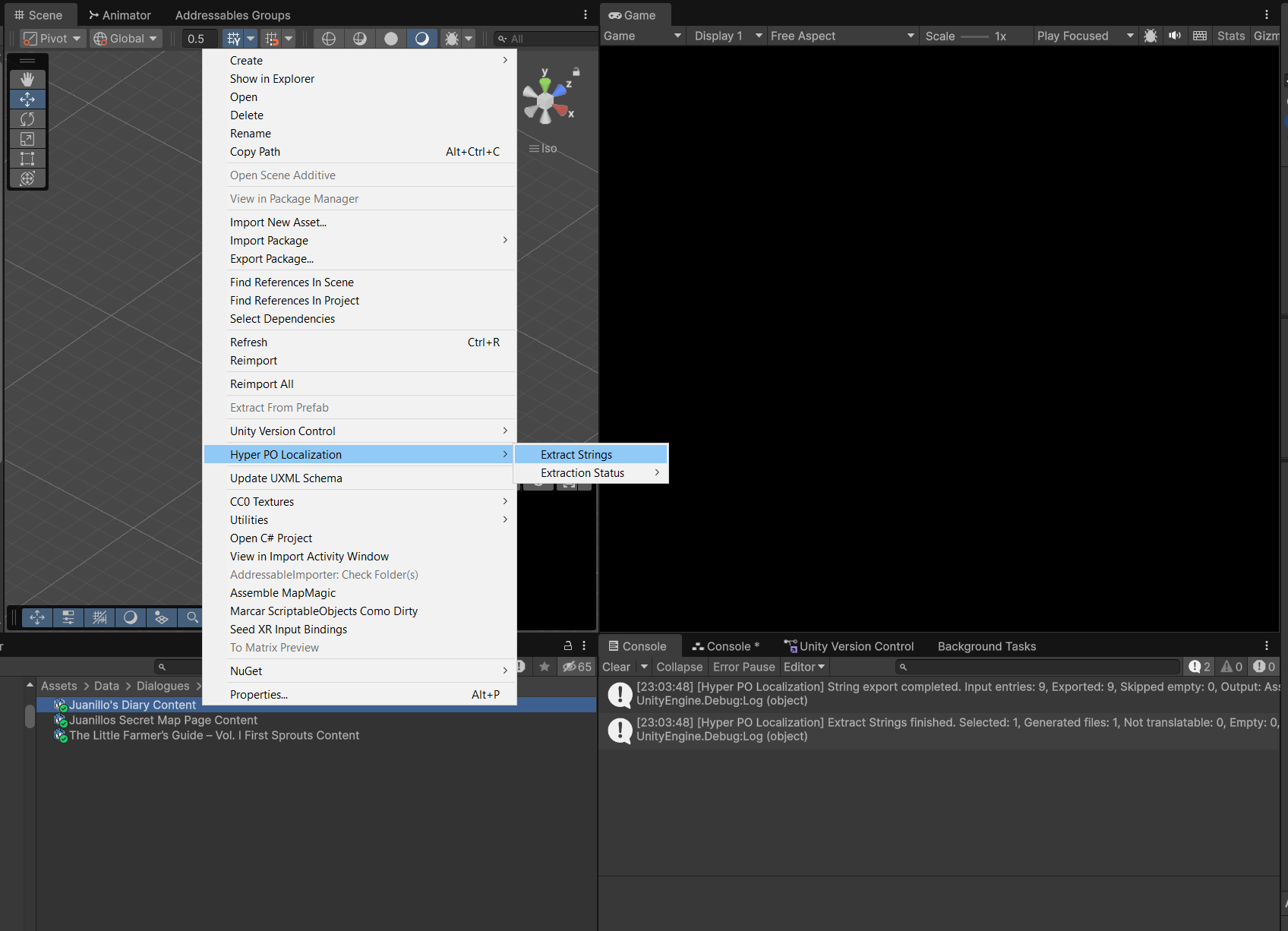
- Run
Tools/Hyper PO Localization/Extract Strings. - You can run the same action from the Project window context menu (right-click):
Assets/Hyper PO Localization/Extract Strings. Extract Stringsprocesses only the asset(s) currently selected in Unity.- If you changed other assets, select them and run extraction again.
- Check the Unity Console: extraction writes a summary log with processed counts and the manifest path.
4) Generate Translation Template
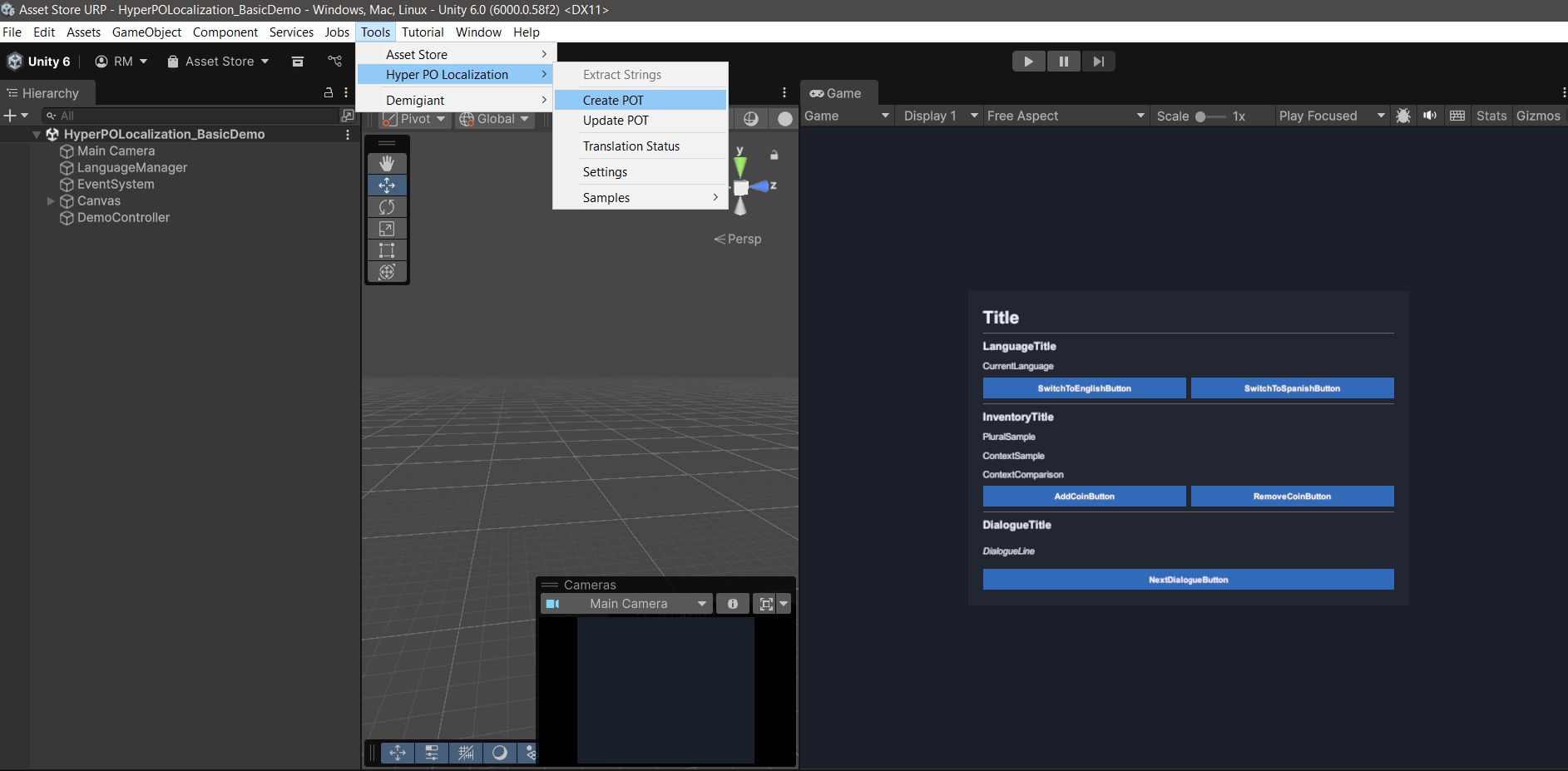
- Run
Tools/Hyper PO Localization/Create POT. - Open generated template:
Assets/StreamingAssets/Languages/<ProductName>.pot
5) Translate with Poedit
- Create/update
.pofiles from the POT. - Save to:
Assets/StreamingAssets/Languages/<language_code>.po
Done. Your project can now load translated strings at runtime.
Screenshots
1) Project Settings
2) Extract Strings
3) Create POT
4) Demo Scene